Webflow SEO is the practice of configuring a Webflow site so search engines can crawl, index and rank it correctly. Unlike WordPress SEO, which is mostly about choosing and configuring plugins, Webflow SEO is about knowing which controls the platform already gives you and which three or four it quietly does not.
According to Webflow’s own documentation, every Webflow site is published to a .webflow.io staging subdomain in addition to your custom domain, and that subdomain is indexable unless you disable it in Site settings. That single default is the most common Webflow SEO problem I encounter. Webflow’s native schema markup field, available on paid Site plans, does not cover every schema type and does not bind to CMS fields — so structured data on CMS-driven pages goes stale the moment the content changes. Google’s structured data documentation is explicit that markup which no longer matches visible content can cost you rich results entirely.
Here is the short version. Webflow is a genuinely capable SEO platform for marketing sites, and its reputation problem is undeserved. But it fails in specific, repeatable ways that generic SEO advice will never surface, because those failures are invisible in the Designer and invisible in most audit tools. This guide covers the five that matter, in the order I check them.
Is Webflow Good for SEO? The Honest Answer
Yes, for the sites it is designed for. Webflow gives you native control over title tags, meta descriptions, canonical tags, 301 redirects, robots directives, URL slugs and XML sitemap generation, none of which require a plugin. It outputs clean, semantic HTML and issues SSL on every site. That is a better technical baseline than most WordPress installations arrive with.
The platform is a strong choice when your website is primarily a marketing asset: service pages, landing pages, SaaS product pages, case studies and a moderate blog. It gets harder when you need a large product catalogue, complex editorial workflows, or schema types Webflow does not natively support.
In my experience auditing sites, the Webflow projects that underperform almost never underperform because of Webflow. They underperform because nobody changed the defaults. Which brings us to the first one.
The .webflow.io Subdomain Is Indexed (Fix This First)
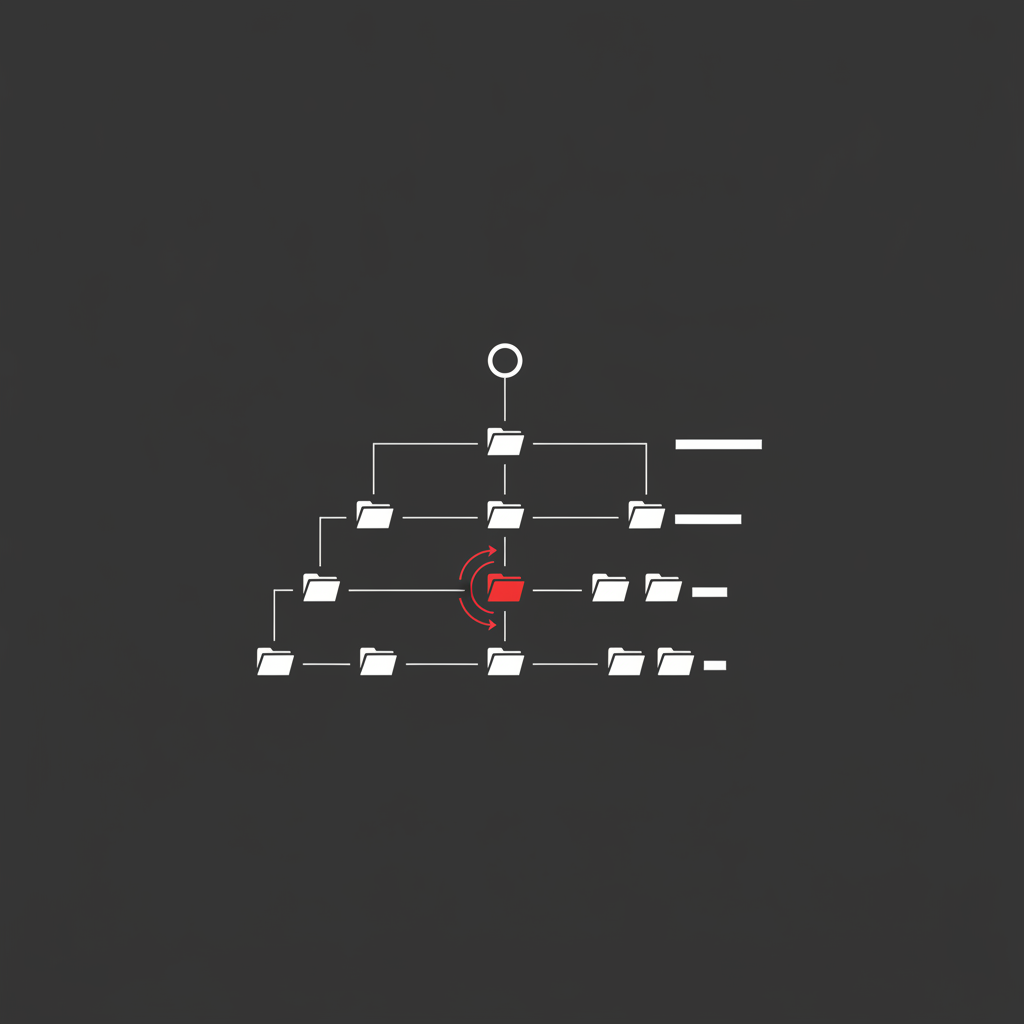
Every Webflow project is served on two hostnames: your custom domain and a yoursite.webflow.io staging subdomain. Both serve the same content. If Google indexes the staging subdomain, you now have a complete duplicate of your website competing against you in the index, with split signals and diluted authority.
This is not a subtle problem, and it is trivially fixable. In Site settings, under the SEO tab, there is a setting to disable indexing on the .webflow.io subdomain. Switch it on. Webflow then serves a robots.txt on the staging subdomain that blocks crawling.
To check whether you are affected, run a site:yoursite.webflow.io search in Google. If results come back, you have the problem right now.
Two caveats worth knowing. First, blocking crawling via robots.txt does not remove URLs that are already indexed — for those you also need a removal request in Search Console for the staging host. Second, the setting only applies once you republish, so toggling it and walking away does nothing. Republish the site.
I still find this live on a meaningful share of the Webflow sites I audit, including sites that have paid for SEO work. It survives because no standard audit crawl starts at the staging hostname, so nothing flags it. If you want a systematic sweep of issues like this, that is exactly what a technical SEO audit is for.
Webflow Schema Markup Drifts Out of Sync
Webflow added a native schema markup field in Page settings, with an AI generator, for users on a paid Site plan or paid Workspace. This was a real improvement. It is also incomplete in two ways that matter.
First, it does not generate structured data for every schema type your pages might need to earn rich results. Second, and more importantly, it is static. It does not bind to CMS fields.
That second point is where sites get hurt. The common pattern is a team pasting JSON-LD into a custom code embed on a CMS template — a Product schema with a hardcoded price, or an Article schema with a hardcoded datePublished. It works on the day it ships. Then someone changes the price in the CMS, or updates the article, and the markup no longer matches what a visitor sees.
Per Google’s structured data guidelines, markup must represent the main content of the page and must not mislead users. When markup and visible content diverge, Google can disable rich results for the page and, in worse cases, apply a manual action for spammy structured data. You lose the enhancement you built the markup for in the first place.
The fix is to make the markup dynamic. In a Webflow CMS template, put your JSON-LD inside an embed component and insert CMS field values directly into it, so every collection item renders schema built from its own live data. Webflow’s embed component supports CMS field insertion, which is what makes this possible without a third-party app.
A practical rule: any value that appears in your schema and can be edited by a non-developer must come from a CMS field, never from typed text. If you want the full picture on getting structured data right, I have a dedicated guide to schema markup and structured data.
CMS Collection Lists and the Pagination Problem
Webflow Collection Lists cap at 100 items per page. On a blog with 60 posts, this is irrelevant. On a site with 800 CMS items — a directory, a large resource library, a programmatic SEO build — it becomes a crawl architecture problem.
With pagination, item 750 sits eight clicks deep from the homepage. Crawl depth is not a formal ranking factor, but it correlates strongly with crawl frequency and indexation in practice, because pages buried deep receive fewer internal links and get visited less often. Deep pages get crawled rarely, refresh slowly, and sometimes never get indexed at all.
There are three workable approaches, in order of preference:
- Build category or topic hub pages that surface items by attribute, so every CMS item is reachable in two or three clicks from a relevant hub rather than through sequential pagination.
- Add a curated internal linking layer — related items, featured selections, alphabetical indexes — so deep items receive links from more than just the paginated list they sit in.
- Split the collection across multiple filtered list views on separate pages, each with its own paginated set, reducing the maximum depth of any single chain.
What does not work is relying on the sitemap alone. A sitemap is a discovery aid, not a substitute for internal linking, and a URL that appears only in a sitemap with no meaningful internal links is a weak candidate for indexing. If deep pages are already dropping out of the index, my guide on crawl budget optimisation covers how to diagnose it in Search Console.
Slug Changes Silently Break Internal Links
This one costs more traffic than it should, because nothing warns you.
When you change a CMS item’s slug in Webflow, the item’s URL changes immediately on publish. Webflow does not automatically create a redirect from the old URL, and it does not update internal links elsewhere on the site that were hardcoded to the old path. Links inside rich text fields are the usual casualty, because those are typed by editors and never audited.
The result is a set of internal links pointing at 404s and, if the old URL had backlinks or rankings, lost equity with no redirect to preserve it.
Webflow does give you the tools to fix this. Site settings includes a redirects manager that handles 301s, and it supports wildcard patterns for bulk cases. The discipline has to be procedural, not technical:
- Before changing any slug, record the current URL.
- Change the slug and publish.
- Immediately add a 301 from the old path to the new one in Site settings → Publishing → Redirects.
- Crawl the site with Screaming Frog or Sitebulb and fix any remaining internal links still pointing at the old URL, so users and crawlers reach the destination in one hop rather than through a redirect.
- Check Search Console’s Pages report a week later for new 404s.
Redirect chains are the failure mode when this is done repeatedly without step four. Each additional hop adds latency and, past a handful of hops, Google may stop following the chain. The details of doing this properly are in my guide to 301 redirects.
Webflow Page Speed and Core Web Vitals
Webflow’s hosting is genuinely fast. It serves over a global CDN with sensible caching, and you are not fighting a stack of plugins for render time. Most Webflow sites that fail Core Web Vitals fail because of what was put into the design, not because of the platform.
Three causes account for almost all of it.
Oversized images. Webflow generates responsive variants automatically, but it generates them from what you upload. A 4MB hero image still produces heavy variants. Compress and resize before upload, and use WebP or AVIF. This is usually the single biggest LCP win available.
Heavy Lottie and video backgrounds above the fold. These are the design flourishes Webflow makes easy, and they are LCP killers. If an animation sits in the initial viewport, it is on the critical path.
Third-party scripts in custom code. Every chat widget, heatmap tool and analytics tag added to the site-wide head affects Interaction to Next Paint. Google’s threshold for a good INP is 200 milliseconds, and a stack of unmanaged third-party scripts blows through it.
The honest limitation: Webflow gives you less control over render-blocking resources than a self-hosted stack does. You cannot restructure the critical rendering path the way you could with full server access. In practice this rarely matters if the three causes above are handled. When it does matter, it is usually a sign the site has outgrown the platform. My guides to LCP optimisation and INP go deeper on both metrics.
The Webflow SEO Audit Checklist
Run these in order. The first three catch the platform-specific failures; the rest is standard technical hygiene that Webflow happens to make easy.
- Staging subdomain. Search
site:yoursite.webflow.io. If indexed, disable indexing in Site settings → SEO and republish. Request removal in Search Console for anything already indexed. - Schema drift. Take three CMS items and compare their rendered JSON-LD against the visible page content. Any hardcoded value that should be dynamic is a defect. Validate with Google’s Rich Results Test.
- Collection depth. Count clicks from the homepage to your deepest CMS item. More than four, and you need hub pages or a curated internal linking layer.
- Redirects. Crawl the site. Every 404 with inbound internal links needs either a fixed link or a 301. Every redirect chain longer than one hop needs flattening.
- Images. Sort by file size in a crawl. Anything over 200KB above the fold gets compressed and converted to WebP.
- Metadata. Confirm CMS templates pull title and meta description from CMS fields rather than falling back to a single templated string across every item.
- Canonicals. Check that CMS template pages self-canonicalise and that no page is canonicalising to the staging domain.
- Sitemap. Webflow auto-generates it. Confirm it is submitted in Search Console and that its URL count roughly matches your expected page count.
If you work through that list and the site still underperforms, the problem is no longer technical, and no amount of Webflow configuration will fix it. At that point the constraint is content and links, which is where rankings are actually won.
Where Webflow Genuinely Limits You
I would rather name the real limits than pretend they do not exist.
You cannot control server-level configuration. No custom .htaccess, no edge logic beyond what Webflow exposes, limited control over response headers. For most marketing sites this never comes up. For a site that needs log file analysis at scale or bot management at the edge, it is a hard ceiling.
Bulk editing is weak. Updating alt text across hundreds of images, or rewriting metadata across a large collection, means either the CMS API, a third-party app, or a lot of clicking. Teams managing large content operations feel this constantly.
Advanced international SEO is workable but constrained. Webflow’s localization handles hreflang automatically, which covers the common case well, but complex multi-region setups with divergent URL structures are easier elsewhere. I cover the general principles in my international SEO guide.
None of these are reasons to avoid Webflow. They are reasons to be honest about when a site has outgrown it — which, for the SME and mid-market sites I typically work with, is far later than most people assume.
Webflow SEO comes down to this: the platform gives you a strong technical baseline and then hands you four or five defaults that will quietly cost you traffic if you never look at them. Check the staging subdomain, make your schema dynamic, keep CMS items within crawl depth, redirect every slug change, and compress your images. Then stop thinking about the platform and go and win on content and links. If you want a second pair of eyes on any of this, that is what I do as a freelance SEO consultant.
Frequently Asked Questions
Is Webflow good for SEO?
Yes, Webflow is good for SEO for most marketing sites. It gives you native control over title tags, meta descriptions, canonical tags, 301 redirects, robots directives, URL slugs and XML sitemap generation without plugins, and it outputs clean semantic HTML. Its weaknesses are specific rather than general: static schema markup that drifts out of sync with CMS content, collection list pagination limits, and a staging subdomain that gets indexed if you forget to switch it off. None of those are dealbreakers, but all three are invisible until you look.
Is Webflow better than WordPress for SEO?
Neither platform wins outright, and the honest answer depends on the size of the site. Webflow wins on maintenance and defaults, because it needs fewer add-ons for common SEO tasks, which means fewer plugin conflicts and less performance drag. WordPress wins on depth, because its plugin ecosystem covers advanced schema, editorial workflows, redirect management and multilingual SEO with far less custom work. For a marketing site of service pages, landing pages and a moderate blog, Webflow is the better default. For a large e-commerce catalogue or an enterprise content operation, WordPress usually gives you more control — though it arrives with its own set of defaults to switch off, covered in the WordPress SEO checklist.
Does Webflow do SEO automatically?
No. Webflow automates a few things and leaves the rest to you. It generates and updates your sitemap.xml automatically as you publish pages, issues SSL, and outputs clean HTML. Everything that actually moves rankings still has to be configured: metadata, heading structure, URL slugs, redirects, internal links, image optimisation and content. Building a site in Webflow gives you a good technical starting point, not an optimised site.
Does Webflow have schema markup?
Yes, but only partially. Webflow added a native schema markup field in Page settings, with an AI generator, for paid Site plans and paid Workspaces. It does not cover every schema type a page might need to earn rich results, and it does not bind to CMS fields, so it is static. For CMS-driven pages the safer approach is dynamic JSON-LD that pulls values directly from your collection fields, so the markup updates whenever the content does.
How do I improve SEO on my Webflow site?
Start with the platform-specific failures before touching content. Disable indexing on your .webflow.io staging subdomain, audit your schema for drift against live CMS content, check whether collection pagination is burying pages past crawl depth, fix redirects after any slug change, and compress images before upload rather than relying on Webflow’s automatic responsive variants. Those five checks take an afternoon and resolve most of what I find in Webflow audits.