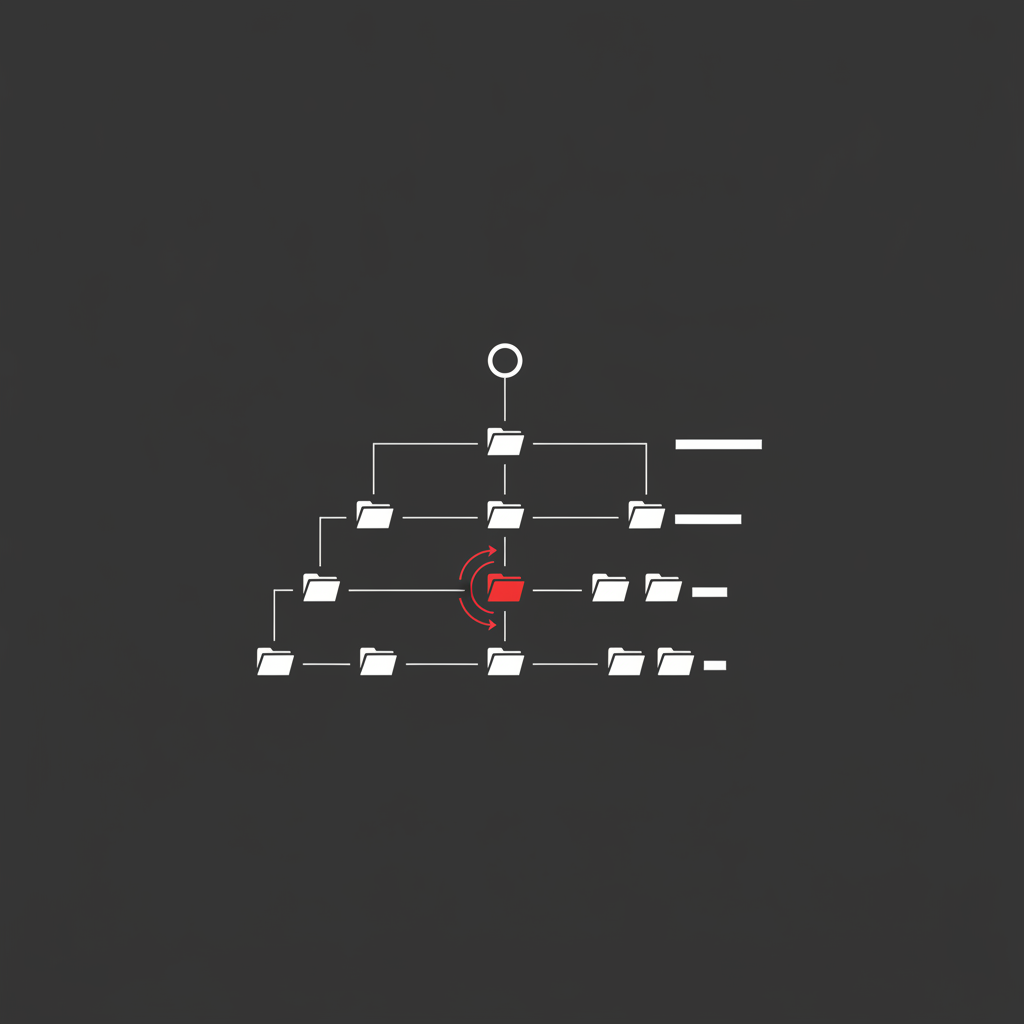
A WordPress SEO checklist is an ordered list of the technical and structural changes that determine whether a WordPress site can be crawled, indexed and ranked. Unlike a plugin’s on-page analysis, which scores a single piece of copy against a focus keyphrase, a real checklist works at site level and starts with what Google can reach at all.
According to W3Techs data, WordPress powers roughly 43% of all websites, which makes it the single most common technical starting point in SEO. Yoast’s own documentation states that getting every traffic light green does not guarantee rankings — the analysis has no access to Search Console and no knowledge of how you actually rank. Ahrefs’ study of one billion pages found that 96.55% of them get no organic search traffic from Google at all.
Here is the short version. Most WordPress SEO advice is written by companies that sell WordPress plugins, so it is organised around plugin settings. That produces sites where every setting is green and nothing ranks. This checklist is organised around what actually breaks, in the order it breaks.
In my experience auditing WordPress sites, the number one cause of “we did all the SEO and nothing happened” is not content quality. It is that the site is asking Google to crawl four times more URLs than it has real pages.
What a WordPress SEO Checklist Should Actually Start With
Not keywords. Not meta descriptions. Indexing.
Open Google Search Console, go to the Page Indexing report, and compare two numbers: how many URLs Google has indexed, and how many pages you actually meant to publish. On a healthy 80-post blog those numbers should be within shouting distance of each other. If Google has indexed 600 URLs, you have a problem that no amount of on-page work will solve.
The gap is almost always made of pages WordPress created without being asked. Every tag gets an archive. Every author gets an archive. Every month and year gets an archive. Every uploaded image gets its own attachment page. None of these were a deliberate editorial decision, and all of them are crawlable, indexable URLs by default.
This matters more in 2026 than it did five years ago, because crawl allocation is now shared with AI crawlers as well as Googlebot. Wasting it on empty archives is a direct cost.
Step 1: Switch Off What WordPress Publishes by Default
This is the highest-leverage change on most WordPress sites and it takes an afternoon.
Author archives. If your site has one author, the author archive is a duplicate of your blog index. Disable it or noindex it. Any SEO plugin exposes this as a single toggle.
Date archives. /2019/03/ is a page nobody navigates to and nothing links to. Turn it off.
Tag archives. This is the big one. WordPress creates a crawlable archive for every tag you have ever typed. A blog with 400 tags across 90 posts has 400 thin pages, most listing one or two articles, all competing for the same terms as the posts themselves. Keep the handful of tags that are genuine destination pages with real intros and real traffic. Noindex the rest.
Attachment pages. WordPress generates a standalone page for every media upload — a URL containing one image and nothing else. Modern SEO plugins redirect these to the parent post. Confirm yours does.
Paginated archives. /blog/page/7/ should be indexable but should not carry the same title tag as /blog/. Check that your plugin appends pagination to titles and that the canonical on page 7 is self-referencing, not pointed back at page 1.
Do these five and you will typically remove 60–80% of the junk URLs from a mature WordPress site. This is the WordPress-specific version of the index bloat problem covered in the crawl budget guide.
Step 2: Make Sure Google Can Index What Matters
Once the junk is gone, check that the pages you care about are actually eligible.
Look at Search Console’s Page Indexing report for three states in particular. “Crawled – currently not indexed” means Google fetched the page and decided it was not worth storing — usually a quality or duplication signal, occasionally a crawl-scheduling one. “Duplicate without user-selected canonical” means Google found the same content at multiple addresses and picked one for you. “Alternate page with proper canonical tag” is normal for paginated and parameterised URLs, but a red flag if your money pages are in there.
Then check the XML sitemap. Your SEO plugin generates it automatically, which is convenient and also means nobody ever looks at it. Open it. Every URL in a sitemap should be indexable, canonical and 200. If your sitemap still lists tag archives you just noindexed, you are sending Google contradictory instructions.
Finally, check robots.txt. WordPress ships a virtual robots.txt that blocks /wp-admin/, which is correct. Problems appear when someone has added blanket disallows for /wp-content/ — that blocks your CSS, JavaScript and images, which stops Google rendering the page properly. Google needs those files.
Step 3: The Plugin Decisions That Actually Matter
There are exactly two plugin decisions that affect SEO, and neither is the one people argue about.
Decision one: use one SEO plugin, not two. Yoast, Rank Math, All in One SEO, SEOPress and The SEO Framework all do the same core job — titles, meta descriptions, canonicals, sitemap, robots directives. Running two simultaneously produces duplicate meta tags, competing canonicals and two sitemaps. Pick one. If you are migrating between them, use the built-in importer and then verify a sample of URLs in view-source, because importers routinely drop custom titles.
Decision two: count your plugins. Not for SEO features — for weight. Every activated plugin can add database queries, HTTP requests, CSS and JavaScript to the front end. The SEO cost is indirect but real: it shows up as server response time and as Core Web Vitals failures.
What does not matter: which SEO plugin you chose. The traffic-light score in the editor is a readability and on-page hint, not a ranking prediction. Yoast says so in its own documentation. Treat a red light as a prompt to reread the paragraph, not as a bug to fix.
Step 4: Speed on WordPress Is a Hosting Problem First
Core Web Vitals thresholds are unchanged in 2026: LCP under 2.5 seconds, INP under 200 milliseconds, CLS under 0.1, measured at the 75th percentile of real users. The WordPress-specific part is where the failures come from.
Measure Time to First Byte on a page that is not cached — log in, or add a cache-busting query string. If TTFB is above roughly 600ms, stop optimising images. The bottleneck is upstream: shared hosting, an unindexed database, a bloated theme running dozens of queries per page, or a plugin doing work on every request. Page caching hides this from your test but not from Googlebot, which frequently requests uncached variants.
The usual order on WordPress is: fix hosting and TTFB, then enable full-page caching, then convert and lazy-load images, then defer render-blocking assets, then deal with third-party scripts. Doing it in the reverse order — which is what most speed plugins encourage — produces a good Lighthouse score and unchanged field data. The distinction between lab and field data is covered in more depth in the LCP optimisation guide, and it applies to every CMS.
One WordPress-specific trap: page builders. Elementor, Divi and WPBakery generate deeply nested markup and ship their own CSS and JS bundles. They are not disqualifying, but they raise the floor on what your CWV can be, and no plugin removes that floor.
Step 5: Internal Links and Content Structure
WordPress gives you two internal linking systems. One is editorial — links you write inside posts. The other is automatic — category and tag archives, related-post widgets, recent-post sidebars.
The automatic one distributes links evenly and therefore uselessly. It gives your best page and your worst page the same treatment. The editorial one is where the actual signal lives.
Do this concretely. Pull your pages by impressions in Search Console and by referring domains in whatever backlink tool you use. Those are your strongest pages. Then add contextual links from them to the pages you want to rank. Three to five per post, descriptive anchors, no “click here.”
Also fix your permalink structure once and never again. Settings → Permalinks → Post name is the right default. If you are on /?p=123 or /2019/03/12/post-name/, changing it is a site-wide URL migration and needs a redirect map, not a checkbox flip. If you are already on a working structure, leave it alone — this is the most common self-inflicted WordPress traffic loss I see, and it is the same lesson as in the URL structure guide.
The WordPress SEO Checklist, Ordered by Impact
Work through it in this order. The order is the point.
- Audit what is indexed. Page Indexing report in Search Console. Count indexed URLs against pages you meant to publish. Write down the gap.
- Switch off WordPress defaults you do not use. Author archives, date archives, uncurated tag archives, attachment pages. Redirect attachment URLs to the parent post.
- Clean the sitemap and robots.txt. Every sitemap URL indexable, canonical and 200. Nothing in robots.txt blocking CSS, JS or images.
- Measure TTFB uncached. Above 600ms means hosting, database or plugin load. Fix that before touching images.
- Configure one SEO plugin, once. Title and meta templates, self-referencing canonicals, sitemap contents. Then stop opening it.
- Audit plugin count. Deactivate and delete anything unused. Every plugin is front-end weight until proven otherwise.
- Build internal links from strong pages to target pages. Three to five contextual, descriptive links per post.
- Only then, work on content. Search intent, depth, structure, E-E-A-T signals.
If you have limited time, steps 1 through 4 are worth more than the rest combined on a typical WordPress site. That is not true on every platform — it is true on WordPress specifically, because WordPress is unusually generous about creating URLs you never asked for.
What This Checklist Deliberately Leaves Out
No focus keyphrase density targets. No “add your keyword to the first paragraph” instruction. No meta keywords field. No advice to install a schema plugin before you have working indexation.
Those things are either obsolete, marginal, or downstream of everything above. A page that Google will not index cannot be helped by a better meta description. That is the ordering error at the heart of almost every other WordPress SEO checklist, and it is why teams complete one and see nothing change.
If you have worked through this WordPress SEO checklist and indexation still looks wrong, the next step is a proper diagnostic rather than another list — that is exactly what a technical SEO audit is for, and what I spend most of my time on as a freelance SEO consultant.
Frequently Asked Questions
Is WordPress good for SEO?
Yes, but not because of anything WordPress does for you. WordPress is good for SEO because it’s easy to change — templates, URLs, markup and internal links are all editable without a developer sprint. That same flexibility is why WordPress sites accumulate technical debt faster than closed platforms. The CMS isn’t a ranking factor; what you do with it is.
Do I need an SEO plugin for WordPress?
You need one, and only one. An SEO plugin handles title tags, meta descriptions, canonical tags, the XML sitemap and robots directives — things WordPress doesn’t manage well on its own. It doesn’t do SEO for you. Running two SEO plugins at once is actively harmful, because both write competing title, canonical and sitemap output.
Why is my WordPress site not ranking on Google?
Check indexing before you check content. Open the Page Indexing report in Search Console and look at how many URLs sit under “Crawled – currently not indexed”, “Duplicate without user-selected canonical”, or “Alternate page with proper canonical tag”. On WordPress the usual cause is index bloat from tag, author, date and attachment archives diluting crawling across near-empty pages.
Are WordPress tags good for SEO?
Tags are a liability by default and an asset only when curated. WordPress creates a crawlable archive page for every tag, so a site with 400 tags has 400 thin archive pages competing with the posts they list. Keep tags only where the archive is a genuine destination with real content, and noindex the rest.
Is Rank Math better than Yoast?
For most sites the difference is irrelevant to rankings. Both write correct titles, canonicals and sitemaps, which is the entire job. Rank Math ships more features in its free tier; Yoast has a longer track record and a cleaner migration path. Pick one, configure it once, and spend the saved time on indexing and internal links.
Sources and further reading: Google Search Central — Page Indexing report, Ahrefs — study of one billion pages, Yoast — SEO analysis documentation.